How to Create a Wi-Fi QR Code for Easy Network Sharing
Let guests join your Wi-Fi with one scan. How the Wi-Fi QR format works, how to make one safely, which security setting to pick, and why some codes fail.
"What's the Wi-Fi password?" is one of the most-asked questions in any café, office or holiday rental. A Wi-Fi QR code answers it without anyone spelling out Gr33n-T3a-House! letter by letter. Guests point their camera at the code, tap the prompt that appears, and they're connected.
This guide shows how to make one in a minute, explains what's inside it, and covers the security and printing details that make the difference between a code people use and one they ignore.
How to make a Wi-Fi QR code in four steps
- Open the Wi-Fi QR code generator (or choose Wi-Fi in the main generator).
- Enter the network name (SSID) exactly as it appears in your phone's list of networks. Capitals, spaces and punctuation all count.
- Choose the security type and enter the password exactly as it's set on the router.
- Check the scan test passes, download the code and print it.
Before you print copies, scan the code with your own phone while it's not already connected to that network. Forget the network in your phone's settings first if necessary. If your phone joins, everyone's will.
Which security type should I choose?
| Your router says | Choose | Notes |
|---|---|---|
| WPA2, WPA3, WPA2/WPA3, WPA/WPA2 "Personal" | WPA / WPA2 / WPA3 | The right choice for nearly every home and business network |
| WEP | WEP | WEP is obsolete and easy to break. Upgrade the router setting if you can |
| Open / None | None | No password. Anyone nearby can join and traffic isn't encrypted |
| WPA2-Enterprise / 802.1X | Not supported by a simple QR | These networks use individual usernames; see below |
You don't need to distinguish between WPA2 and WPA3. The Wi-Fi QR format uses one value, WPA, for both, and the phone negotiates the right protocol when it connects.
What's actually inside the code
A Wi-Fi QR code contains a short line of text in a format first popularised by the open-source ZXing barcode project and now understood by the camera apps on current iPhones and Android phones:
WIFI:T:WPA;S:Cafe-Guest;P:green tea 2026;;
T:is the security type (WPA,WEPornopass)S:is the network nameP:is the passwordH:trueis added for hidden networks- The double semicolon at the end closes the record
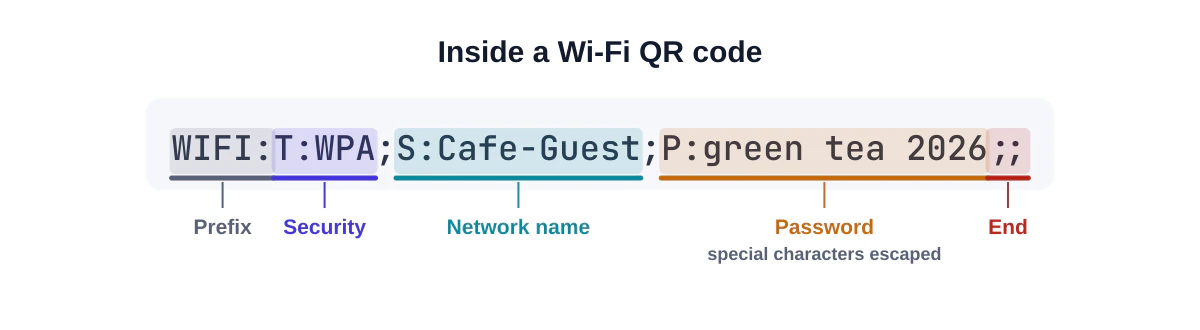
Because semicolons, colons and commas separate the fields, those characters must be escaped with a backslash if they appear in your network name or password. The same goes for backslashes and double quotes. A password like tea;time:42 has to be written as tea\;time\:42 inside the code. This is the single most common reason home-made Wi-Fi codes fail. Our generator escapes these characters automatically.
Hidden networks
If your network doesn't broadcast its name, tick This network is hidden. The code then tells phones to look for it actively. Support for hidden networks varies a little between devices, so test with the phones your guests are likely to use.
Enterprise Wi-Fi
Networks that ask each person for a username and password (common in large offices and universities, often labelled WPA2-Enterprise or 802.1X) can't be fully configured from a simple QR code on every device. For guests, the better solution is a separate guest network with a shared password, which is also good security practice.
Keep your main network safe
A Wi-Fi QR code is effectively your password printed in a form anyone can read with a phone. That's fine for guest access if you plan for it:
- Use a separate guest network. Most routers can create one. Keep point-of-sale terminals, security cameras, printers and staff computers on the main network, which guests never see.
- Turn on client isolation for the guest network if your router offers it, so guests' devices can't see each other.
- Display the code where you'd be comfortable saying the password out loud. On the café counter: fine. Facing the street through a window: probably not.
- Rotate the password occasionally, then print and replace the codes. Old codes simply stop working.
Designing and printing it
- Add a clear label, such as "Scan to join our guest Wi-Fi". People are understandably wary of scanning unlabelled codes.
- Print the network name and password underneath as well, for laptops and older devices that can't scan.
- Keep it simple. A Wi-Fi code is longer than a short link, so it's denser. Skip heavy styling and logos, or print it larger.
- Size it for the distance. On a table or counter, 3 to 4 cm is comfortable. On a wall sign, go much bigger.
- Avoid glossy lamination under bright lights; reflections make scanning harder.
If you need codes for several rooms or networks, the printable QR sheet tool lays out labelled codes on A4 or Letter paper.
Troubleshooting
The phone sees the code but won't connect. Almost always the network name or password doesn't match exactly. Check for capital letters, a trailing space or a character that looks similar (such as 0 and O). Also confirm you chose the right security type.
The phone joins but there's no internet. That's a router or network issue, not the code. Check that the guest network has internet access enabled.
Nothing happens when scanning. Make sure you're using the phone's camera app or built-in code scanner. On iPhone you can use the Camera app or the Code Scanner control in Control Center. Some third-party scanner apps show the raw text instead of offering to join.
It worked before, now it doesn't. The password on the router has probably changed. Make a new code.
For more causes, see why a QR code isn't working.
Is it private to make the code here?
Yes. Our generator builds the code entirely in your browser. The network name and password aren't sent to our servers or stored anywhere, which matters for a tool that handles passwords. You can confirm this by disconnecting from the internet after the page loads; the generator keeps working.
Example: a café setup
A small café creates a guest network called Cafe-Guest with WPA2 and a memorable password. It prints a 4 cm Wi-Fi code on each table card under the heading "Free Wi-Fi: scan to join", with the network name and password in small text underneath for laptops. The till, card terminal and office computer stay on a separate staff network that guests never see. Every few months the owner changes the guest password, prints new table cards in a batch, and the old cards simply stop working.
Frequently asked questions
Can I read the password from a Wi-Fi QR code?
Yes. Anyone can decode the code with a scanner that shows the raw content, including our QR code decoder. Treat the code as you would the written password.
Do Wi-Fi QR codes work on laptops?
Laptops rarely have a convenient camera workflow for joining networks, so print the network name and password next to the code.
Does the code expire?
No. It keeps working as long as the network name and password stay the same.
Summary
Use the WPA setting for any modern router, type the network name and password exactly, let the generator handle special characters, put guests on their own network, and label the code clearly. Create your Wi-Fi QR code now.
Sources and further reading
QRaft Editorial Team
The people who build and maintain QRaft's tools. Every guide is written and checked against the tools on this site and the public specifications it cites. How we write and review guides.