Why Is My QR Code Not Working? Common Problems and Solutions
A step-by-step troubleshooting guide for QR codes that won't scan or open the wrong thing: contrast, size, quiet zone, logos, printing, links, Wi-Fi and more.
A QR code that doesn't work usually fails in one of two ways: the phone can't read it at all, or it reads it but does the wrong thing. Those have completely different causes, so the first step is to work out which one you have.
Use our QR code decoder with a clear photo of the code, or the camera scanner. If it shows the content, the code is readable and the problem is the content or the destination. If it finds nothing, the problem is the code's appearance, size or print.
Part 1: The code won't scan
Work through these roughly in order of how often they're the culprit.
1. Not enough contrast
Scanners care about brightness difference between modules and background. Light grey, yellow, pastel or light brand colours on white often fail. Fix: use a dark colour (navy, black, deep green, dark purple) on white or very light background. Our generator warns you when contrast is low.
2. Inverted colours
A light code on a dark background looks stylish but trips up many phone scanners. Fix: dark modules on a light background. If the design is dark, put the code on a white panel.
3. Missing quiet zone
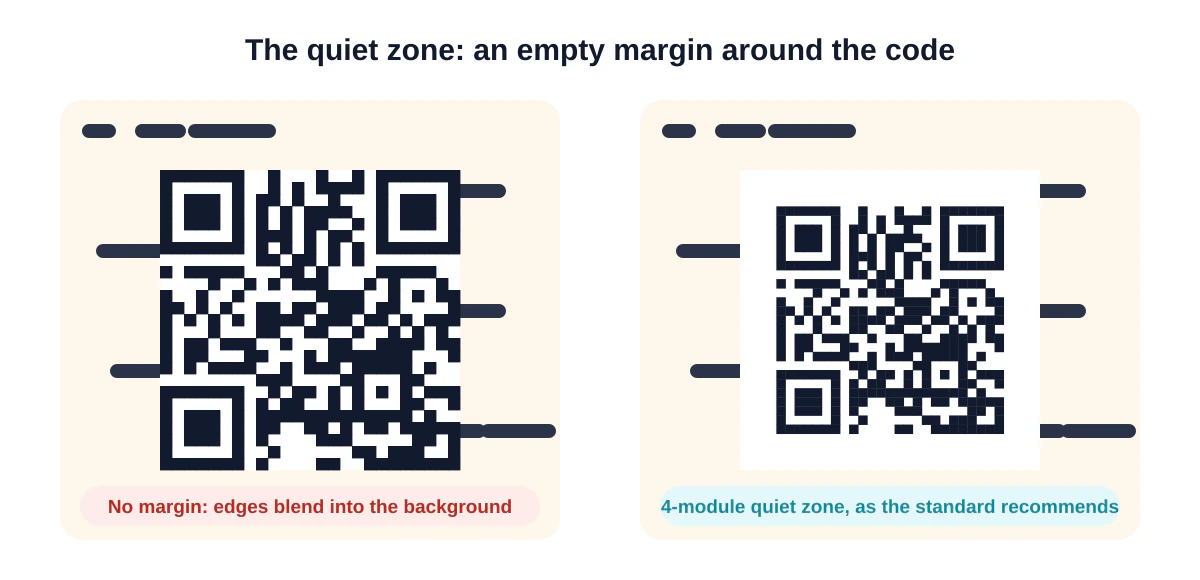
The blank margin around the code is part of it; the standard asks for four modules. Text, borders, photos or a tight crop eat into it. Fix: clear space on all four sides.
4. Too small for the scanning distance
A rule of thumb: the code should be at least one tenth of the distance it's scanned from. A 2 cm code is fine on a business card, hopeless on a poster across a room. Fix: print bigger, or move it closer to where people stand.
5. Too dense
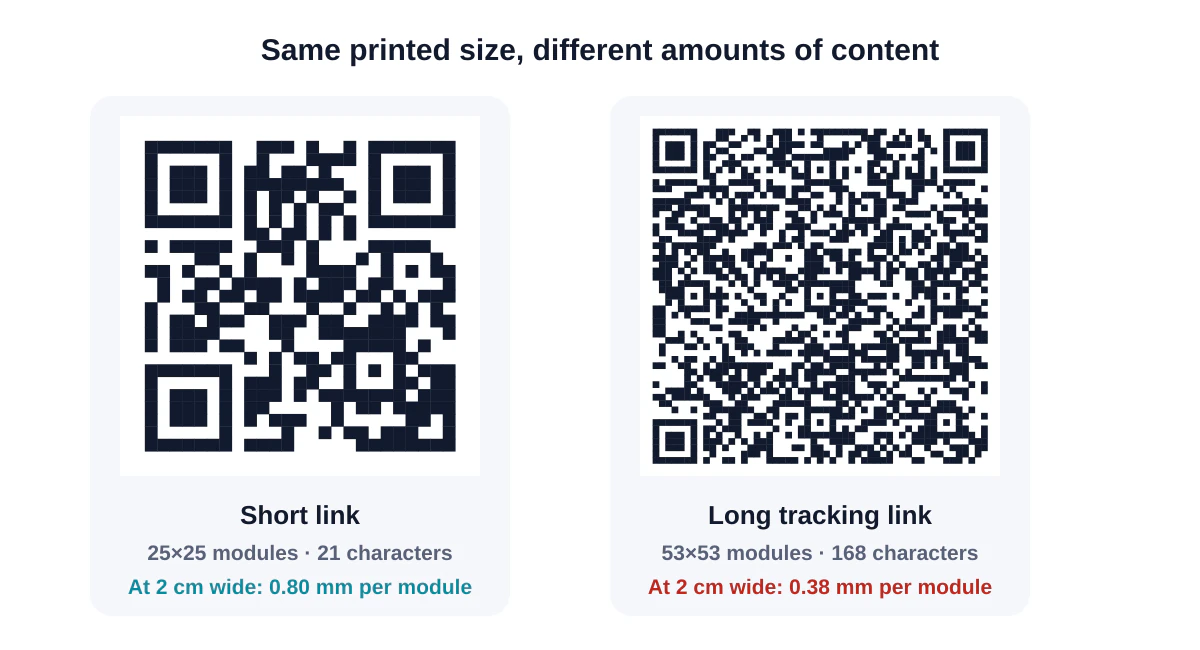
Long links, big contact cards and high error correction all add modules. At a fixed print size, more modules means smaller modules that cameras can't resolve. Fix: shorten the link (a short path on your own domain), trim vCard fields, or print larger. Watch the Grid number in our generator.
6. Logo too large
A logo covers modules; error correction rebuilds them, but only up to about 30% damage at level H, and that budget also has to absorb dirt and glare. Fix: shrink the logo to roughly 20–25% of the width and make sure error correction is H.
7. Blurry or pixelated print
A small PNG stretched in a layout program produces soft edges and grey fringes. Fix: use an SVG, PDF or EPS file for print, or a PNG exported at the final size or larger. If you only have a low-quality image of an existing code, the QR code converter can rebuild it as a crisp vector file.
8. Glare and reflections
Gloss lamination, varnish, glass and acrylic stands bounce light straight into the camera. Fix: matte finishes; angle displays away from overhead lights; test in the real location.
9. Curved or wrinkled surfaces
Bottles, cans, fabric and bags distort the grid. Fix: place the code on the flattest area, keep it small relative to the curve, or use a flat label.
10. Damaged or dirty codes
Scratches, stains and torn stickers remove modules. Error correction helps (that's why codes for rough environments should use level Q or H), but it has limits. Fix: reprint, protect with a matte cover, or use higher error correction next time.
11. Phone or screen issues
Sometimes the code is fine and the phone isn't. A dirty lens, an old phone that won't focus close up, or a scanner app that's been disabled. When scanning from a screen, low brightness, dark mode and screen protectors can interfere. Fix: clean the lens, step back a little to let it focus, raise screen brightness, and try the phone's built-in camera. On an iPhone you can scan with the Camera app or the Code Scanner in Control Center.
Part 2: It scans, but does the wrong thing
12. The link is broken or wrong
The code faithfully opens whatever it contains. If the page has moved, been renamed, requires a login or has a typo, the code "fails". Fix: decode the code to see the exact address, open it on a phone using mobile data while signed out, and fix the destination. If the code is already printed, restore the old address or put a redirect on it.
Prevention: point printed codes at a short, permanent address on your own domain that you can redirect as things change. Our static vs dynamic guide explains how.
13. The dynamic QR service stopped redirecting
Codes from subscription services route through the provider. If the subscription ends or the service closes, every printed code can break at once. Fix: decode one to find the provider, check the account, and plan to replace printed codes with static ones pointing to your own site.
14. Wi-Fi codes that won't connect
If the phone offers to join but fails, the details inside the code don't match the router. The usual suspects:
- Network name or password with different capitals or a stray space.
- The wrong security type (choose WPA for WPA2 and WPA3 networks).
- Special characters like
;,:,,or"that weren't escaped with a backslash. The Wi-Fi QR format uses these as separators, so an unescaped semicolon in a password cuts it short. - The router password has changed since the code was printed.
Fix: regenerate the code with our Wi-Fi generator, which escapes special characters automatically, and test with a phone that has "forgotten" the network. See the Wi-Fi QR code guide for more.
Other content mix-ups
- Phone numbers without a country code dial the wrong number abroad.
- WhatsApp numbers with a leading zero or "+" produce an "invalid number" message. See the WhatsApp guide.
- Contact cards with unescaped commas or semicolons split names oddly.
- Plain text when a link was intended: a web address without
https://may be shown as text by some scanners. Our generator addshttps://automatically.
A quick diagnostic checklist
| Symptom | Most likely cause |
|---|---|
| Nothing happens on any phone | Contrast, inverted colours, quiet zone, or print quality |
| Works up close, not from a distance | Too small or too dense |
| Works on screen, not in print | Print resolution, finish or glare |
| Works on some phones, not others | Inverted colours, heavy styling, or density |
| Opens an error page | Destination broken or moved |
| Opens a QR company's page instead of yours | Dynamic code subscription issue |
| Wi-Fi prompt appears but won't connect | Credentials, security type or escaping |
How to avoid problems next time
- Keep codes dark on light, with strong contrast and a full quiet zone.
- Use short, stable links on your own domain.
- Size for distance and density.
- Use vector files for print.
- Print a proof on the real material and scan it with two or three different phones in the real light.
Our design best practices guide covers each of these in depth, and the generator runs a scan test every time you change something.
Frequently asked questions
Why does my QR code work on iPhone but not Android (or vice versa)?
Different phones use different scanning software. Inverted codes, heavy styling or very dense codes sit near the edge of what some scanners handle. Simplify the design and increase size.
Can I fix a printed code without reprinting?
If the problem is the destination and the code points to a page you control, yes: fix or redirect the page. If the problem is how the code looks, you'll need to reprint.
Do QR codes wear out?
The format doesn't, but printed codes fade, get scratched and peel. Check outdoor and high-traffic codes periodically.
Summary
First find out whether the code is unreadable or misdirected. Unreadable codes are almost always about contrast, quiet zone, size, density, logo size or print quality. Misdirected codes are about the content: a broken link, a lapsed redirect service, or Wi-Fi details that don't match. Decode the code, fix the cause, and test a real print before the next run. Start by checking your code with the QR decoder.
Sources and further reading
QRaft Editorial Team
The people who build and maintain QRaft's tools. Every guide is written and checked against the tools on this site and the public specifications it cites. How we write and review guides.